
The 15-Minute Screen Reader Test: Listen to Your Website
With NVDA, VoiceOver or TalkBack, you can uncover in fifteen minutes many barriers that automated tools miss. Here are the essential commands and a ready-to-use test routine.
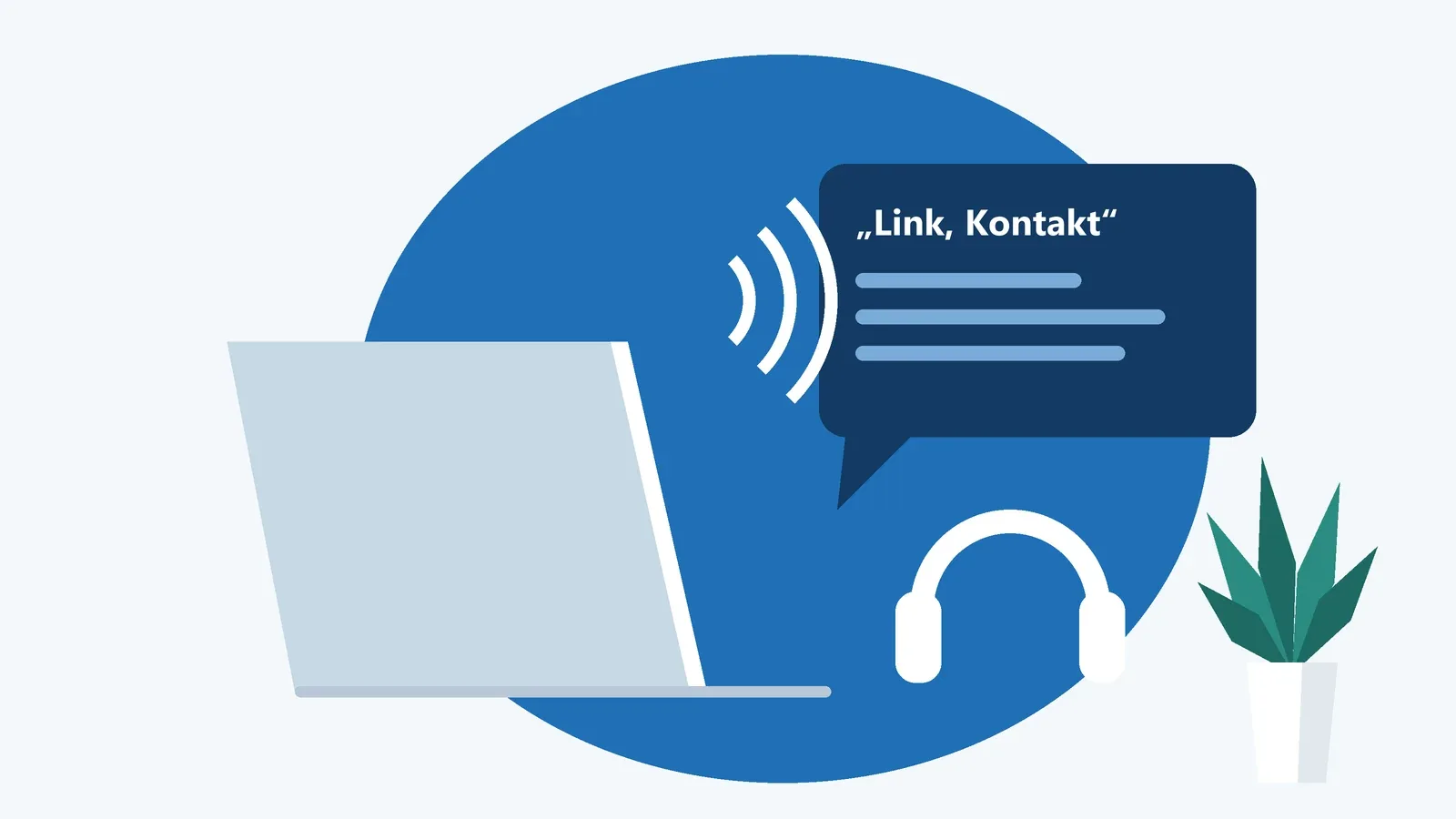
Automated testing tools are fast and thorough, but they don’t listen. They can tell that an image is missing an alt attribute. Whether a button is announced as just “button” or as “Subscribe to newsletter”, whether an expanded menu is actually announced as expanded, or whether an error message reaches anyone at all – you’ll only find that out by using the page with a screen reader yourself.
The good news is that you don’t need to be an expert. The major screen readers are free or already built into your device, and a handful of commands will get you surprisingly far. Fifteen minutes is enough to find the biggest problems on a page.
In this article, you’ll learn the basic commands for NVDA, VoiceOver and TalkBack, get a ready-made 15-minute routine, and see the issues you’re most likely to run into.
Before you start: three things to keep in mind
You’re not testing the way a blind user would. People who use a screen reader every day are much faster, use different strategies and know plenty of shortcuts. You, on the other hand, can see the screen and will subconsciously fill in what the speech output leaves out. A quick test is no substitute for testing with real users or for a full audit. Our article on accessibility testing explains how these fit together.
Screen readers and browsers come in pairs. Results depend on the combination. Tried-and-tested pairings are NVDA with Firefox or Chrome on Windows, VoiceOver with Safari on macOS and iOS, and TalkBack with Chrome on Android. WebAIM’s screen reader user surveys consistently show JAWS, NVDA and VoiceOver among the most widely used. JAWS is commercial and not necessary for a quick test.
Try to tune out the screen. Rely on what you hear as much as possible. With VoiceOver on iPhone, you can do this literally with Screen Curtain. On desktop, simply keeping your hand off the mouse helps a lot.
To learn how people use screen readers in everyday life and which other tools exist, read our article on assistive technologies.
NVDA on Windows
NVDA is a free, open-source screen reader from NV Access. Download it from nvaccess.org and install it. The installer sets up a shortcut to start it: Ctrl + Alt + N.
Most commands use the NVDA key. By default, that’s the Insert key. In the settings, you can also make Caps Lock an NVDA key, which is handy on laptops without an Insert key.
On web pages, NVDA works in browse mode, where single letters let you jump around the page. When you move into a form field, NVDA switches to focus mode so your keystrokes go into the field.
- Ctrl: stop speech immediately
- NVDA + Down Arrow: read everything from the current position
- Up/Down Arrow: read line by line
- Tab / Shift + Tab: move to the next/previous focusable element
- H: next heading; 1 to 6: next heading at that level
- D: next landmark
- K: next link; B: next button
- F: next form field; E: next edit field
- G: next graphic; T: next table; L: next list
- Shift plus any of these letters: move backwards
- NVDA + Space: toggle between browse mode and focus mode
- NVDA + F7: Elements List with links, headings and landmarks
- NVDA + T: read the title of the current window
- NVDA + Q: quit NVDA
A tip for documenting your findings: open the NVDA menu (NVDA + N) and go to Tools to find the Speech Viewer. It shows everything NVDA says as text in a separate window, so you can review announcements and copy them into your report.
VoiceOver on the Mac
VoiceOver is built into macOS. Turn it on and off with Command + F5. Commands use the VO keys, which are Control + Option by default.
- Control: stop speech
- VO + Right/Left Arrow: move to the next/previous item
- VO + A: start reading from the current position
- VO + Space: activate an item, such as a link or button
- VO + Command + H: jump to the next heading
- VO + U: open the rotor
The rotor is your most important tool. It lists headings, links, form controls and landmarks. Use Left/Right Arrow to switch between lists, Up/Down Arrow to pick an entry, and Return to jump to it.
Test in Safari. One catch: by default, Safari’s Tab key only moves between form fields. To make Tab reach links as well, go to Safari’s Advanced settings and turn on the option to press Tab to highlight each item on a webpage. Alternatively, just press Option + Tab instead of Tab.
VoiceOver on iPhone
On iOS, you’ll find VoiceOver in Settings under Accessibility. It’s a good idea to set up the Accessibility Shortcut there, so you can toggle VoiceOver by triple-clicking the side button (or the Home button on older models). Practice this before you start – with VoiceOver on, your iPhone behaves very differently.
- Swipe right/left: move to the next/previous item
- Double-tap: activate the selected item
- Two-finger swipe up: read everything from the top
- Two-finger swipe down: read from the current position
- Two-finger tap: pause or resume speech
- Three-finger swipe: scroll
- Rotate two fingers on the screen: change the rotor setting, for example to “Headings”; then swipe up or down to move between headings
- Triple-tap with three fingers: turn Screen Curtain on or off
TalkBack on Android
TalkBack is Google’s screen reader and comes preinstalled on most Android devices. You’ll find it in Settings under Accessibility. If you enable the shortcut there, you can turn TalkBack on and off by holding both volume keys for a few seconds. Menu names vary slightly between manufacturers.
- Swipe right/left: move to the next/previous item
- Double-tap: activate the selected item
- Drag one finger across the screen: hear what’s under your finger
- Swipe with two fingers: scroll
Many other gestures, such as those for reading controls or the TalkBack menu, depend on the TalkBack version and device. The built-in tutorial in TalkBack’s settings shows you which gestures apply on your phone. Test in Chrome.
The 15-minute test routine
To start, pick a typical page with navigation, content and at least one form – a product page or contact page works well. The following routine works with all three screen readers.
Minutes 0–2: Arrival
Reload the page and listen. Is a meaningful page title announced that sets this page apart from others? That’s 2.4.2 Page Titled. Does the pronunciation sound right? If English content is read with a German or French voice, the language markup is missing or wrong – see 3.1.1 Language of Page.
Minutes 2–5: Structure through headings
Open the list of headings (NVDA + F7 or the rotor) or jump through the page with H. Is there a main heading? Do the headings describe their sections? Is the hierarchy logical, or are “headings” just bold text? This falls under 1.3.1 Info and Relationships.
Minutes 5–6: Landmarks
Jump through the landmarks with D (NVDA) or via the rotor. Can you find the header, navigation, main content and footer? If there are several navigation areas, they should have distinct names.
Minutes 6–8: Links
Look at the list of all links. Do the link texts make sense out of context? Ten instances of “Learn more” is a classic finding. The benchmark is 2.4.4 Link Purpose (In Context).
Minutes 8–10: Images
Jump through the images with G (NVDA) or by swiping. Are informative images described meaningfully? Are decorative images skipped? Do you hear file names? For what makes good alt text, see our article on writing alt text.
Minutes 10–13: Forms
Tab through the form. Is a label announced for every field – and is it the visible one? Are required fields identifiable? Submit the form with deliberate errors: do you find out that something went wrong, and where? Success and error messages that appear without a focus change need to be announced. That’s covered by 4.1.3 Status Messages.
Minutes 13–15: Interactive components
Test the components that cause the most trouble: main menu, accordions, tabs, modal dialogs, cookie banners. Are name, role and state announced – for example, “Menu, button, collapsed” and “expanded” once it’s open? That’s required by 4.1.2 Name, Role, Value. When a dialog opens, does focus move into it, and does it return to the trigger when the dialog closes? That relates to 2.4.3 Focus Order.
Common findings
Most quick tests turn up similar problems. Once you know them, you’ll recognize them faster:
- Nameless buttons: icon buttons are announced only as “button” because they lack text or an
aria-label. - Unreachable controls: clickable
divelements don’t show up when tabbing or as buttons. - Missing states: an accordion opens, but the screen reader says nothing because
aria-expandedis missing. - Dialogs without focus management: a modal opens but focus stays behind it, or you can navigate to the content underneath.
- Silent error messages: red text appears under the fields but is neither announced nor associated with the field.
- Placeholders instead of labels: the field only has placeholder text, which disappears when you type and isn’t announced reliably everywhere.
- Duplicate or unnecessary announcements: logos, icons and text all say the same thing, or hidden content gets read out.
- Cookie banners as dead ends: the banner is visible but can’t be reached or dismissed with a screen reader.
For each finding, note the page, the element, the screen reader and browser combination, and what you heard. NVDA’s Speech Viewer is ideal for this.
Printable checklist
- The page title is unique and announced on load.
- The page language is correct and pronunciation sounds right.
- Headings reflect the structure logically.
- Header, navigation, main content and footer are identifiable as landmarks.
- Link texts make sense in the links list.
- Informative images have fitting alt text; decorative ones are skipped.
- Every form field has an announced label.
- Error and status messages are announced.
- Buttons, menus and accordions convey name, role and state.
- Dialogs move focus in and back out again.
Conclusion
A quick screen reader test is one of the most effective fifteen minutes you can spend on accessibility. You don’t need a license or expert knowledge – just the willingness to listen instead of look. Many problems that automated tools miss become audible right away.
Start with a single page and make the test a routine, for example before every major release. You’ll get faster over time, and your components will get better because you’ll design them for the ear from the start. You’ll find the relevant criteria for every finding in the WCAG guide.
Sources
- NV Access: NVDA User Guide (opens in a new tab)
- Apple: VoiceOver User Guide for Mac (opens in a new tab)
- Google: Android Accessibility Help and TalkBack (opens in a new tab)
- WebAIM: Testing with Screen Readers (opens in a new tab)
- WebAIM: Using NVDA to Evaluate Web Accessibility (opens in a new tab)
- WebAIM: Using VoiceOver to Evaluate Web Accessibility (opens in a new tab)